Step 1: Upload Your Files in Batch
Drag and drop your audio or video files into EasyScribe. You can upload up to 20 files at a time, including common formats like MP3, WAV, M4A, MP4, MOV, AVI, and MKV.

Have 20 recordings waiting in a folder? Drop them into EasyScribe once and let the whole batch move through transcription without uploading, waiting, and downloading each file one by one.
Built for interviews, meetings, lectures, podcasts, and videos.
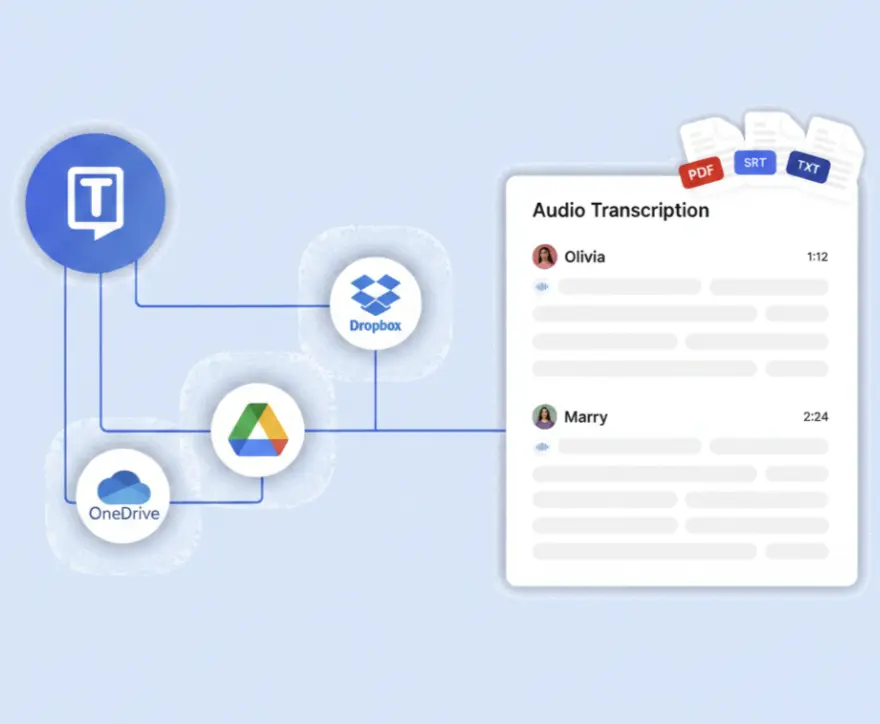











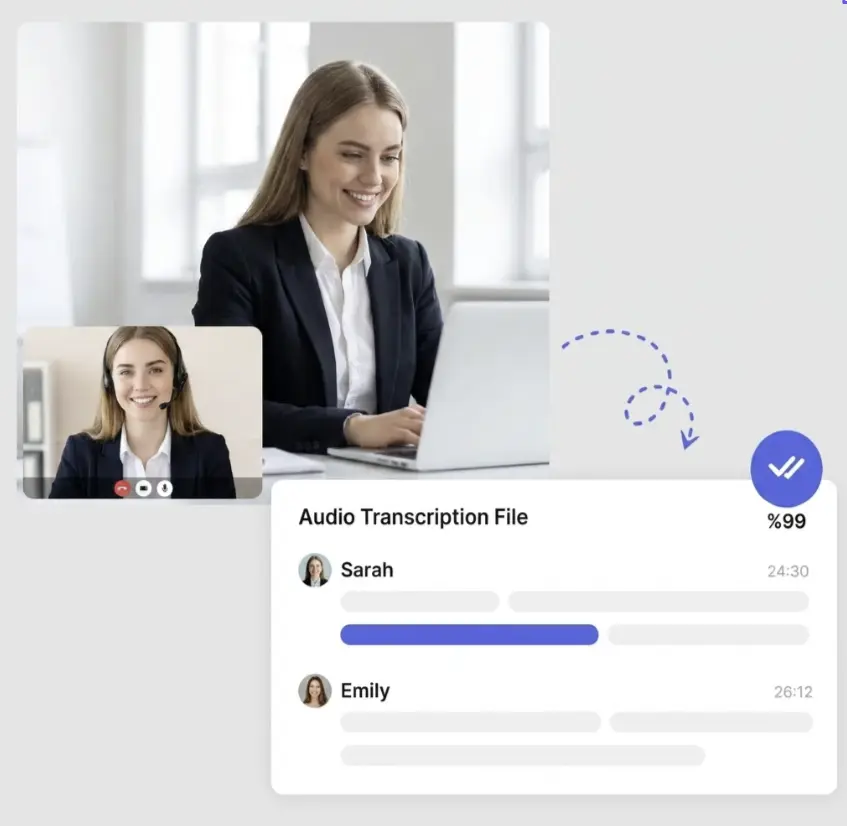
Drag and drop your audio or video files into EasyScribe. You can upload up to 20 files at a time, including common formats like MP3, WAV, M4A, MP4, MOV, AVI, and MKV.
Run the whole upload queue instead of handling each recording separately. EasyScribe transcribes your files into accurate text and keeps each result matched to its original file.
Choose clean transcripts when you just need readable text, or timestamped output when you need subtitles or easier playback reference. Then download your transcripts or subtitles as DOCX, PDF, SRT, VTT, or TXT.
EasyScribe supports batch upload for up to 20 audio or video files at a time. Add your files to one queue, start transcription once, and manage the full batch without repeating the same action for each recording.
Common audio and video formats are supported, including MP3, WAV, M4A, MP4, MOV, AVI, and MKV. Each file can be up to 2GB, giving longer recordings enough room without extra preparation.
For recordings with several speakers, EasyScribe can separate voices with Speaker Diarization. This makes interviews, meetings, calls, and panel discussions easier to read because each speaker is clearly labeled.
Transcription is available in 120+ languages, including English, Spanish, French, German, Japanese, Korean, and Chinese. Transcripts and subtitles can also be translated for multilingual batches.
EasyScribe lets you export transcripts and subtitles in DOCX, PDF, SRT, VTT, or TXT. Choose the format that fits your next step, whether you need documents, subtitle files, plain text, or shareable records.
Timestamps can be included in transcripts and subtitles when you need time references. They can also be removed when you want a cleaner text version for reading, editing, notes, or documents.
RESEARCHERS
A small research project can still leave you with 12 to 20 interview recordings. If each one runs 30 to 45 minutes, that is a full workday of audio before you even start writing notes. EasyScribe turns the batch into searchable transcripts, so you can spend less time replaying recordings and more time comparing answers, finding themes, and copying exact quotes. Speaker labels and timestamps help you check who said what before using a line in your notes or report.

CONTENT CREATORS
Creators rarely work from one clean file. A project may include podcast episodes, webinars, raw video clips, screen recordings, and interviews. EasyScribe turns those recordings into text, so hooks, quotes, examples, and useful sections are easier to find. From there, your team can shape scripts, captions, articles, newsletters, or short-form ideas without replaying every file from scratch.

COURSE TEAMS
Course teams often manage a full set of lesson recordings, workshop videos, and internal training sessions, not just one class file. EasyScribe helps turn the batch into transcripts, subtitles, and learning notes that students or teammates can revisit later. The material becomes easier to scan after class, prepare for different learning needs, and keep consistent across the whole course.

BUSY TEAMS
Customer calls, project reviews, team syncs, and stakeholder meetings can pile up faster than anyone can review them. EasyScribe helps teams process those meeting recordings together and turn them into searchable transcripts and summaries. It becomes easier to check decisions, follow-ups, blockers, customer questions, and who said what without relying on memory or scattered notes after the call.

Maya Thompson
UX Researcher
Not gonna lie, batch upload is the reason I stayed. I had 18 interview recordings and did not want another upload-wait-download marathon. I still fix names, but finding quotes is way less painful now.
Jordan Lee
Content Creator
Our content folder was a mess of webinars, podcast clips, and random screen recordings. EasyScribe gave us text to search first, so finding lines for captions and scripts stopped feeling like detective work.
Elena Martinez
Course Creator
What sold me was not losing track of the files. I had a whole course backlog, and each transcript stayed matched to the right lesson. Subtitles and study notes were much easier to prep after that week.
Priya Shah
Customer Success Manager
For CS calls, I used to open the recording just to check one customer quote. Now we batch transcribe the calls first, search the text, and only jump back to the audio when something needs a closer look.
Daniel Brooks
Project Manager
Uploading 20 meeting recordings one by one is the kind of task nobody admits they hate. EasyScribe makes it a queue instead. The timestamps are handy when my notes say to check this part again later.
Chloe Bennett
Podcast Producer
Our podcast archive used to be a black hole. After batch transcription, I can search old episodes, find the guest line I half-remembered, and export the text without scrubbing through the whole show.
You can upload up to 20 files at a time for batch transcription. Each file can be up to 2GB, so longer recordings usually do not need to be split before uploading.
Upload multiple recordings, run one transcription queue, and download the transcripts or subtitles you need without processing every file one by one.
Start Batch Transcription