

YouTube transcripts are handy, but downloading them is not as straightforward as it should be. If a video has captions, you can usually open the transcript panel and read the text there. But YouTube still does not give you a simple Download transcript button.
So what do you do? You either copy the transcript by hand and clean up the messy formatting, or use a YouTube transcript tool when you need a cleaner file for notes, research, translation, subtitles, or turning a video into content.
In this guide, I'll show you the practical ways to download transcript from youtube, including what to try when the video has no captions.
Why You Might Need YouTube Transcripts
You know the moment: the answer is somewhere in the video, but you do not remember where. So you scrub back, listen again, pause too late, replay the same few seconds, and then type the sentence out yourself.
A transcript saves you from that little back-and-forth loop. Instead of hunting through the timeline, you can search the spoken text, copy the part you need, and move on. The easiest first step is to check YouTube's own transcript panel. It will not give you a clean download file, but when captions are available, it is still the fastest place to start.
Let's start with the built-in option first, then move on to cleaner ways to download, export, or generate a transcript when YouTube is not enough.
Method 1: Using YouTube's Built-in Transcript Feature
On Desktop
Step 1: Open the YouTube Video and Find "Show transcript"
First, open YouTube.com on your desktop browser and choose the video you want to turn into text. Then look right under the video. You should see the title, channel name, and a short description. Click More to expand the full description area.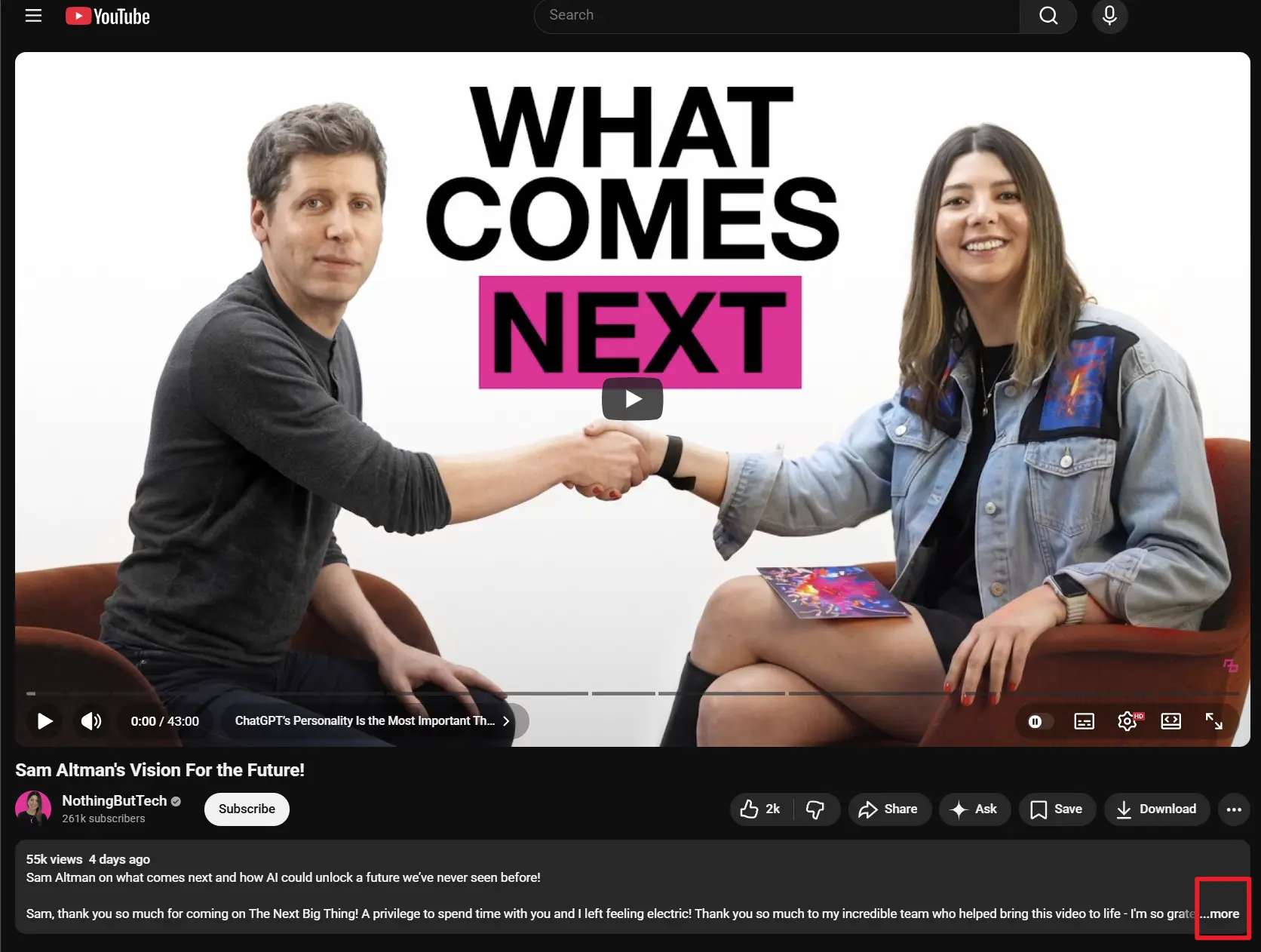
Once it opens, scroll a little and look for the Show transcript button. If this video has captions or a transcript available, YouTube will usually show the button there.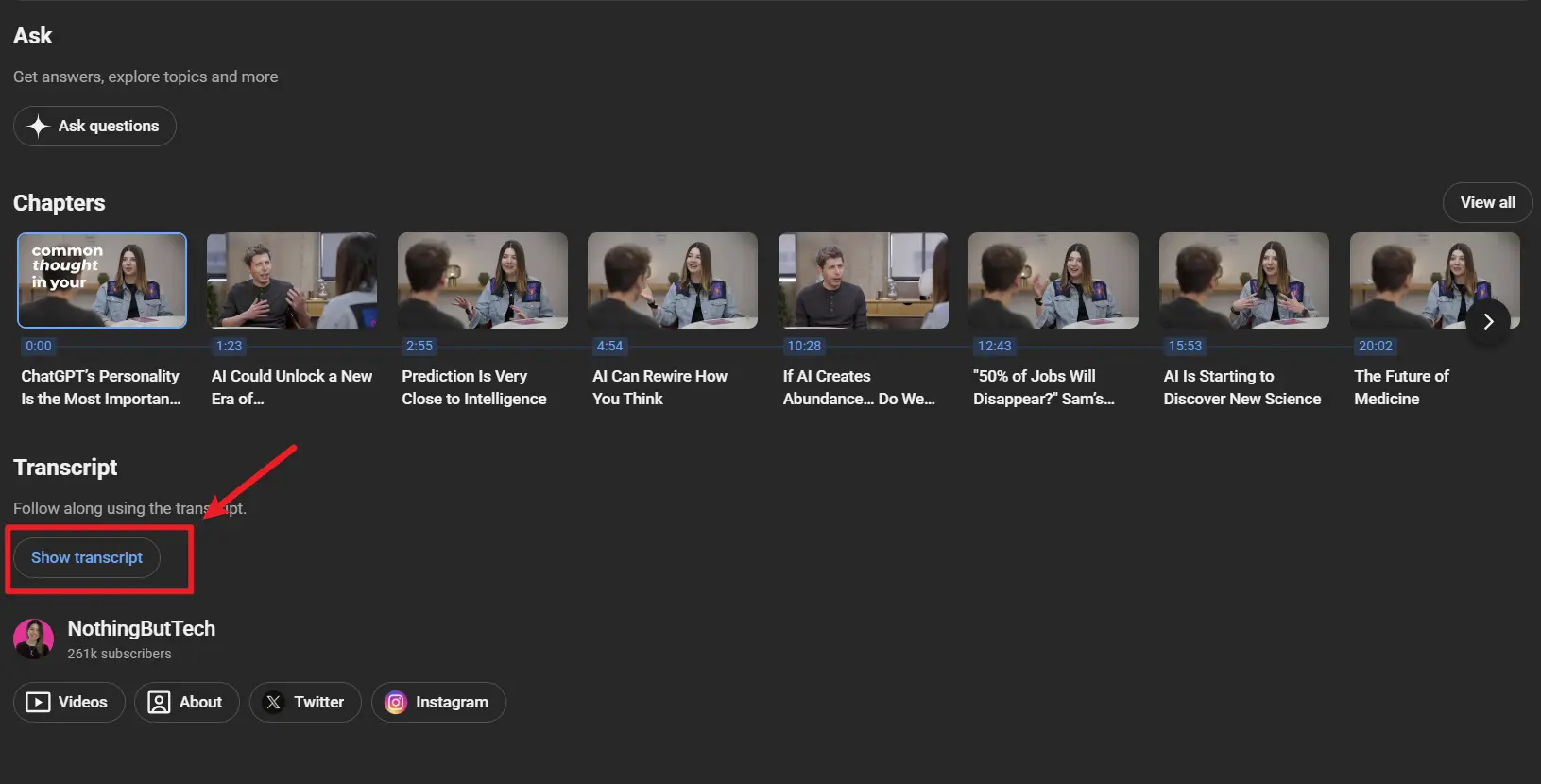
Step 2: View the Full Transcript on the Right Side
After you click Show transcript, YouTube will open the full transcript panel on the right side of the video. You will see the video text broken into small sections, usually with timestamps next to each line.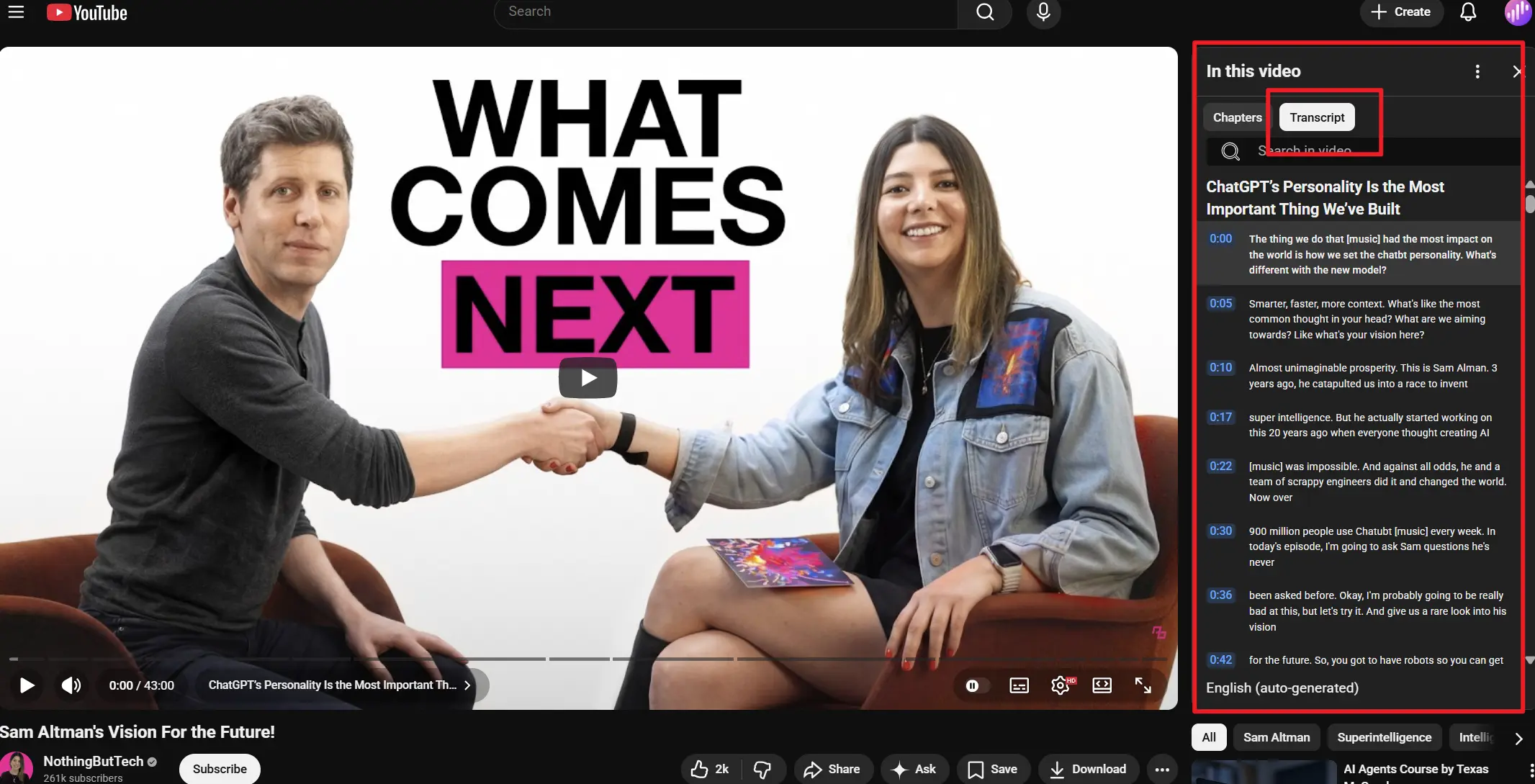
If you do not want the timestamps, click the three-dot menu in the top-right corner of the transcript panel. Then click Toggle timestamps.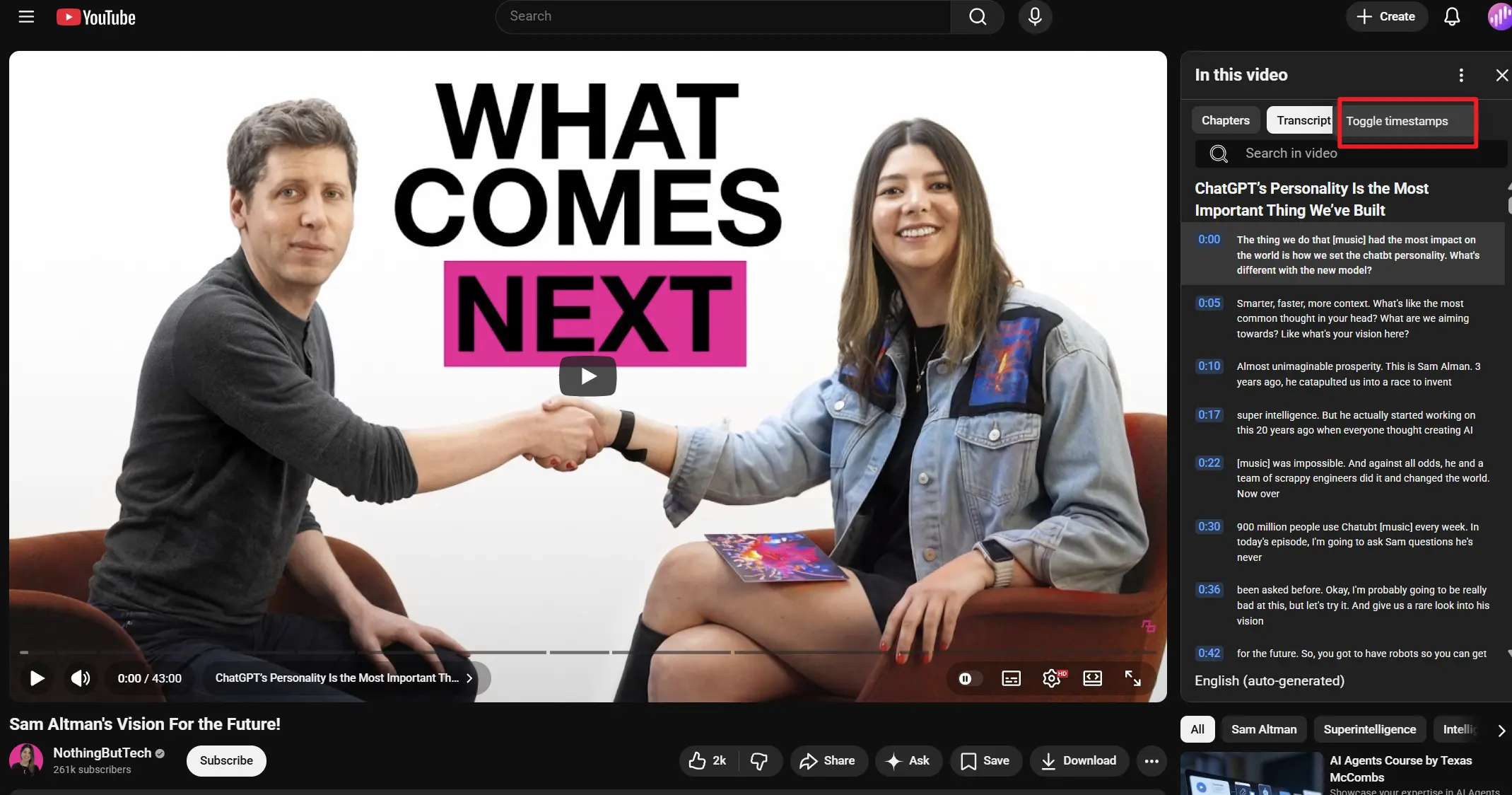
Now the timestamps should disappear, leaving you with a cleaner, section-by-section transcript that is easier to copy, read, or save.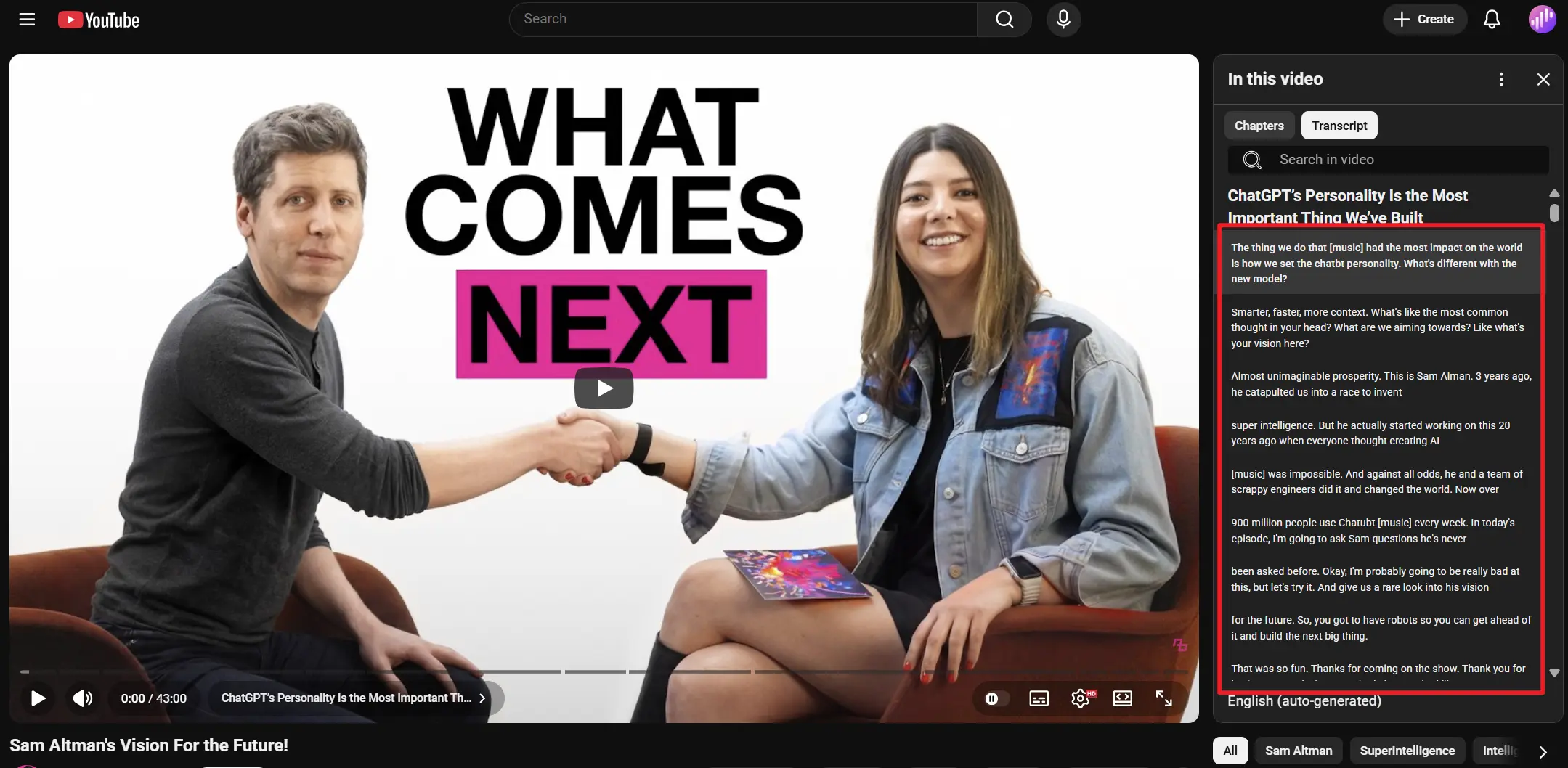
Step 3: Copy the YouTube Transcript Manually
Now you can select the transcript text manually. Hold your mouse button down, drag through the transcript, and highlight the part you want to copy.
Then right-click the selected text and click Copy. After that, you can paste the transcript wherever you need it.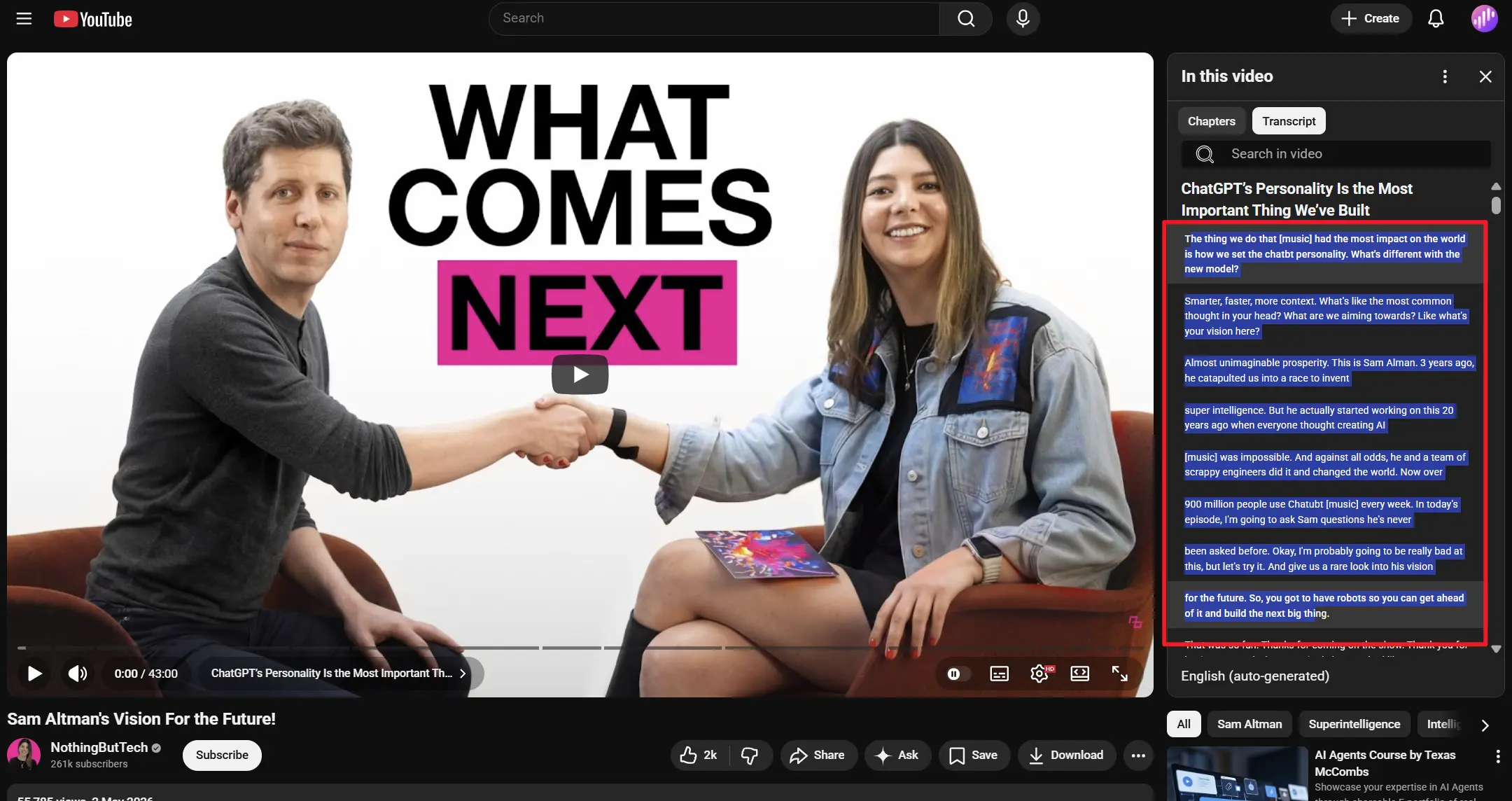
On Mobile
Step 1: Open the YouTube App on Your Mobile Device
Open the YouTube app on your iPhone or Android phone. Find the video you want to get the transcript from, then tap More to expand the video details.
Step 2: Tap "Show Transcript" Button
Just like on desktop, tap Show transcript to open the transcript YouTube generates for the video.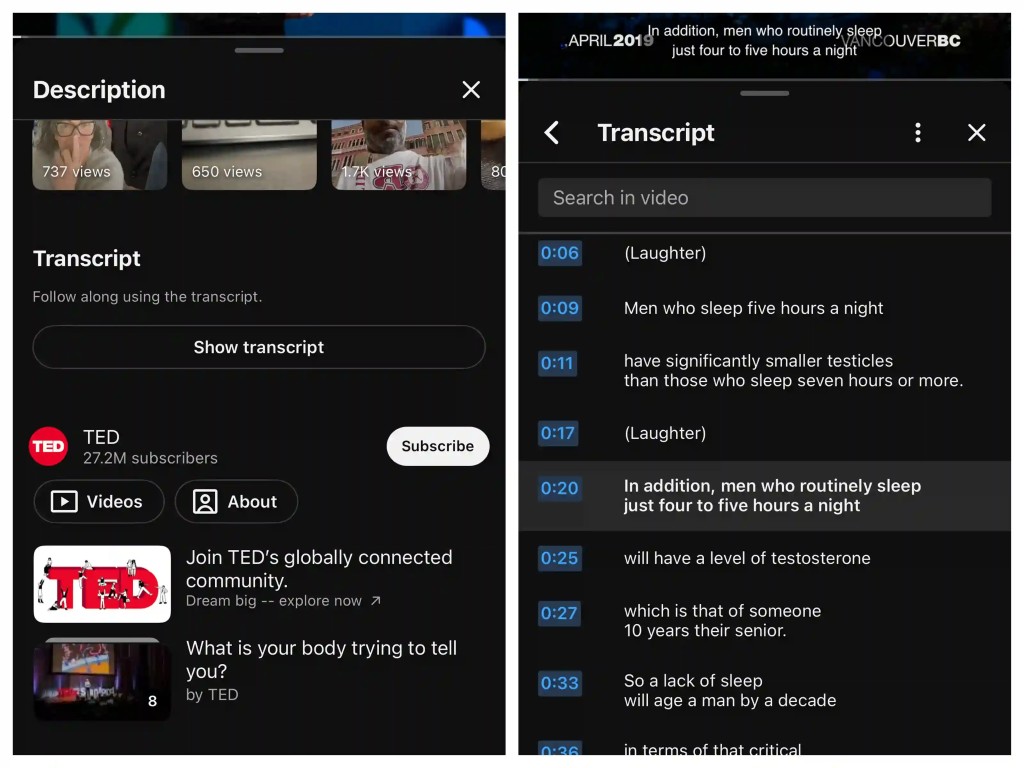
But here is the limitation: in the YouTube mobile app, you can usually read and search the transcript, but you cannot directly copy or download it. If you need to copy the text, you can use YouTube on desktop, or open the video in a mobile browser instead of the app.
Method 2: Use Gemini to Get a YouTube Transcript
I get it — copying a YouTube transcript by hand still feels like too much work. And if you have tried pasting a YouTube link into ChatGPT and asking for the transcript, you may have hit the same problem I did: it can answer about the video, but it may not actually read the full transcript for you.
Gemini is worth trying here. In many cases, you can paste a YouTube video link into Gemini and ask it to turn the video into text. I tested it with a YouTube link, and it returned the video text without making me copy the transcript panel line by line.
But here is the thing: the prompt matters. If you only say “give me the transcript,” Gemini may give you a summary, a messy block of text, or a transcript without timestamps and proper formatting. So use a more specific prompt instead.
Step 1: Open Gemini
Go to Gemini and start a new chat.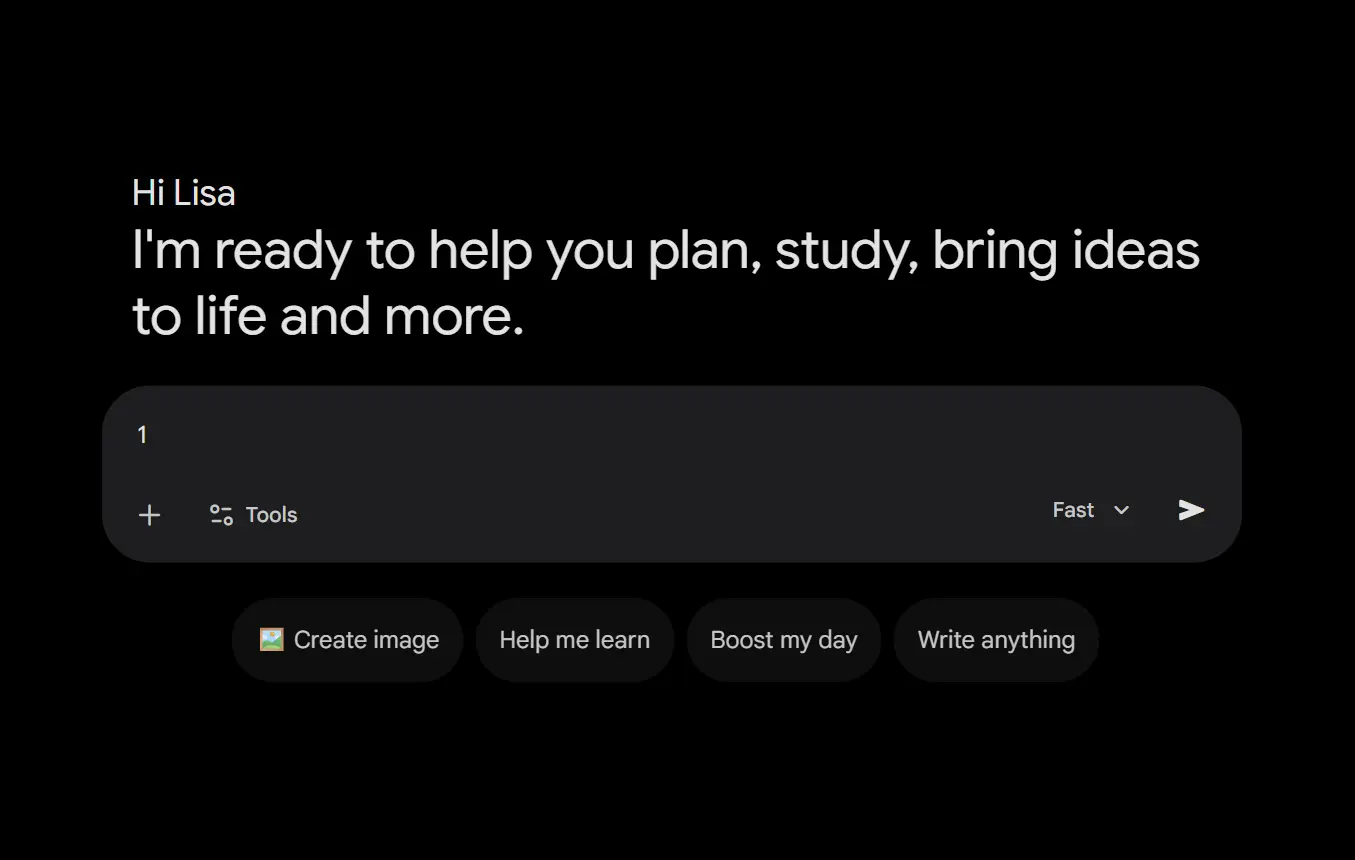
Step 2: Paste Your YouTube Link into This Prompt
Copy your YouTube video link, then paste it into the prompt below.
"Please provide a complete word-for-word transcript of this YouTube video [PasteURL]. I need the full text in English. Crucially, please add proper punctuation, capitalization, and logical paragraph breaks to the text so it is readable. Format it with timestamps for each logical segment (e.g.,). Do not summarize or omit any words."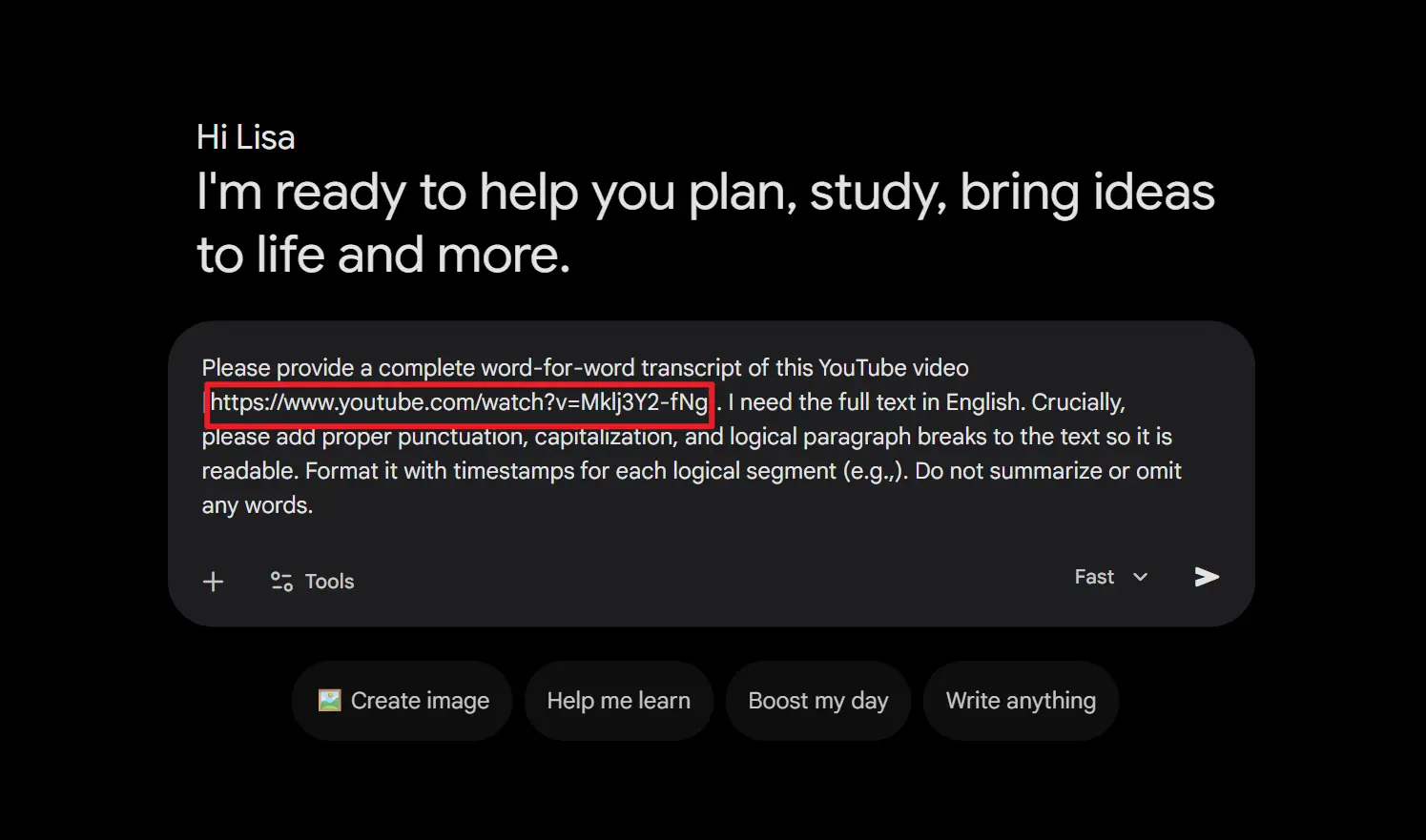
Step 3: Get the Transcript
Send the prompt and wait for Gemini to return the transcript. If the result looks like a summary or the formatting is messy, try again with the same prompt and remind Gemini not to summarize the video.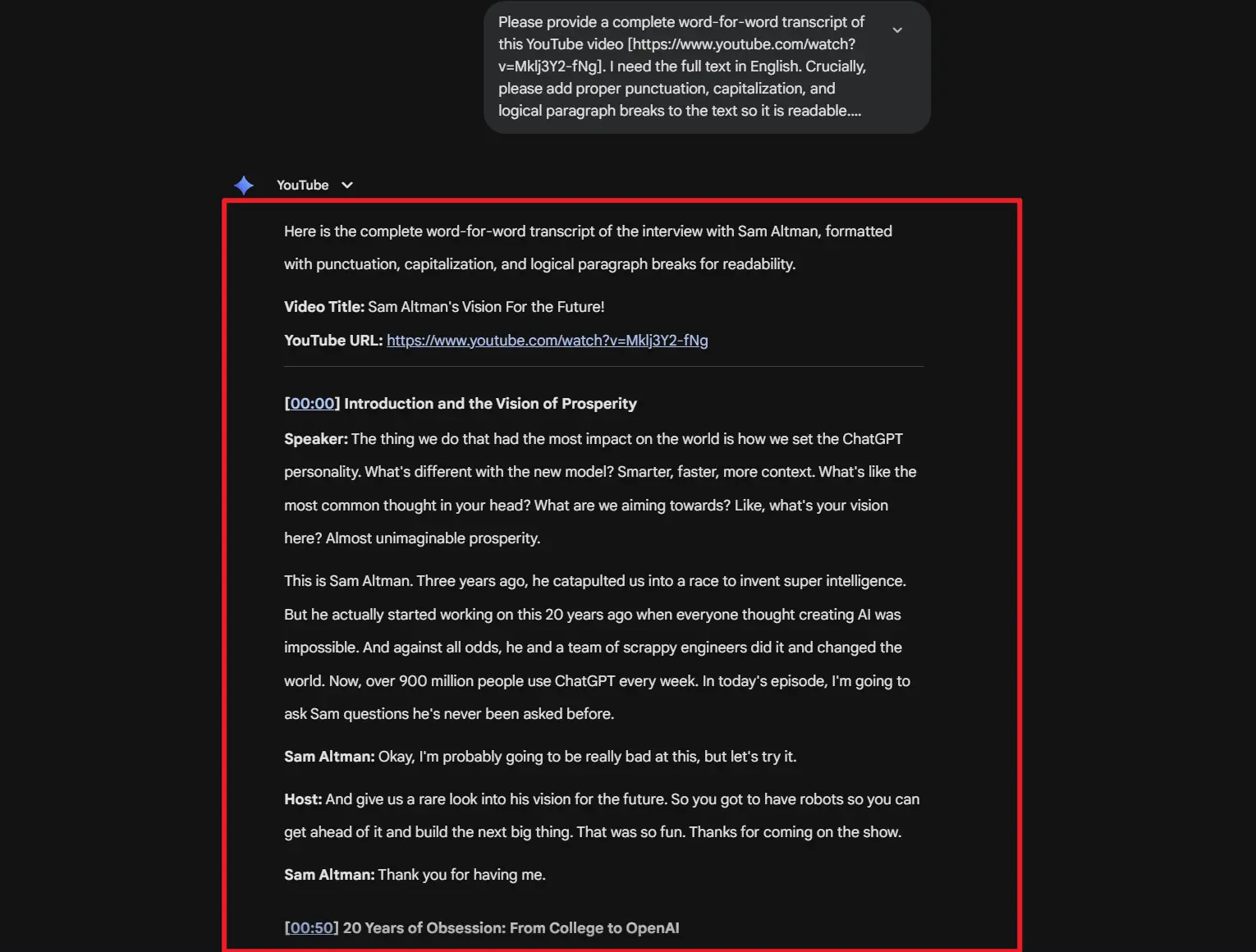
Note:
One quick note before we move on: Gemini is not magic here. From my test, it works best when YouTube already has captions or a transcript for the video. If the video has no captions, Gemini may not be able to listen to the video and create a brand-new transcript from nothing.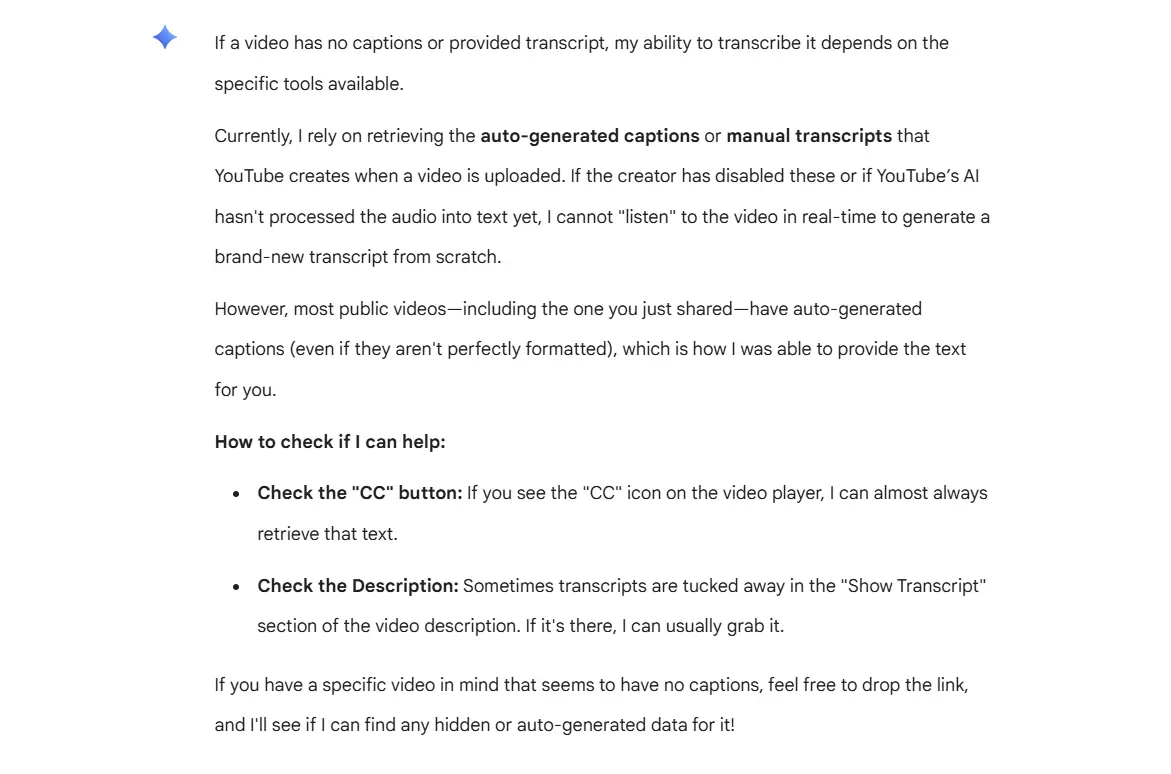
So for quick reading, YouTube's transcript panel and Gemini are both worth trying. But when you need a clean transcript you can edit, translate, export, or turn into subtitles, you will need something built for that job. That is what the next method is about.
Method 3: Using EasyScribe's YouTube Transcript Generator
If YouTube’s transcript panel feels too basic, and Gemini does not give you the format you need, this is where a dedicated tool like EasyScribe makes more sense.
EasyScribe is an AI video and audio transcription tool. You can use it to transcribe YouTube videos, TikTok videos, local video files, and audio files. Instead of only reading or copying plain text, you get more options after the transcript is generated:
3 free transcriptioin daily
Paste a YouTube link or upload a file
Edit the transcript with timestamps
Transcribe multiple videos at once
Translate transcripts into 120+ languages
Generate AI summaries
Use AI Chat to ask about the video
Get high-accuracy transcription
So next, let's walk through how to use EasyScribe YouTube Transcript Generator to extract transcript from youtube video.
Step 1: Log in to EasyScribe with Google
First, log in to EasyScribe with your Google account. You need to enter the workspace before you can start a transcription.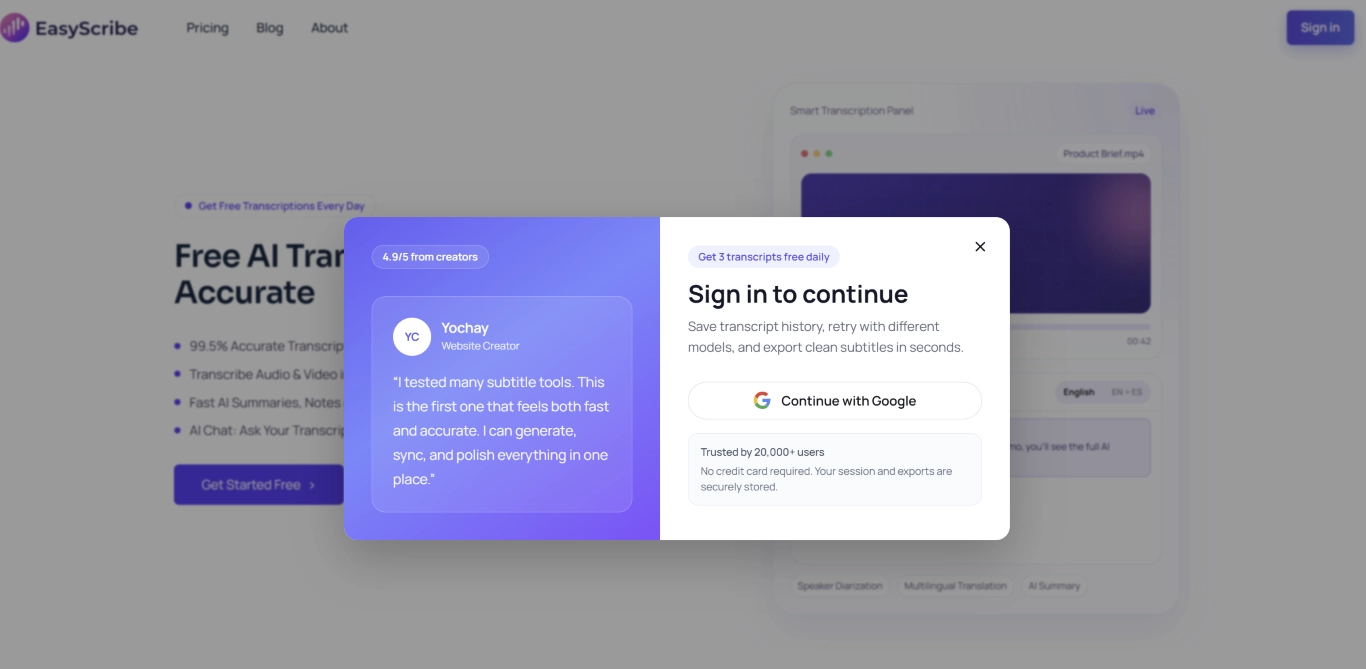
EasyScribe gives you a free daily quota: you can transcribe 3 files per day, and each file can be up to 10 minutes long. This works for both local files and online videos.
Step 2: Paste the YouTube Video Link
After you log in, go to the left menu and open the YouTube to Script page. Now paste your YouTube video link into the input box, then click Transcribe Now. EasyScribe will start processing the video, and in most cases, the transcript will be ready in a few minutes.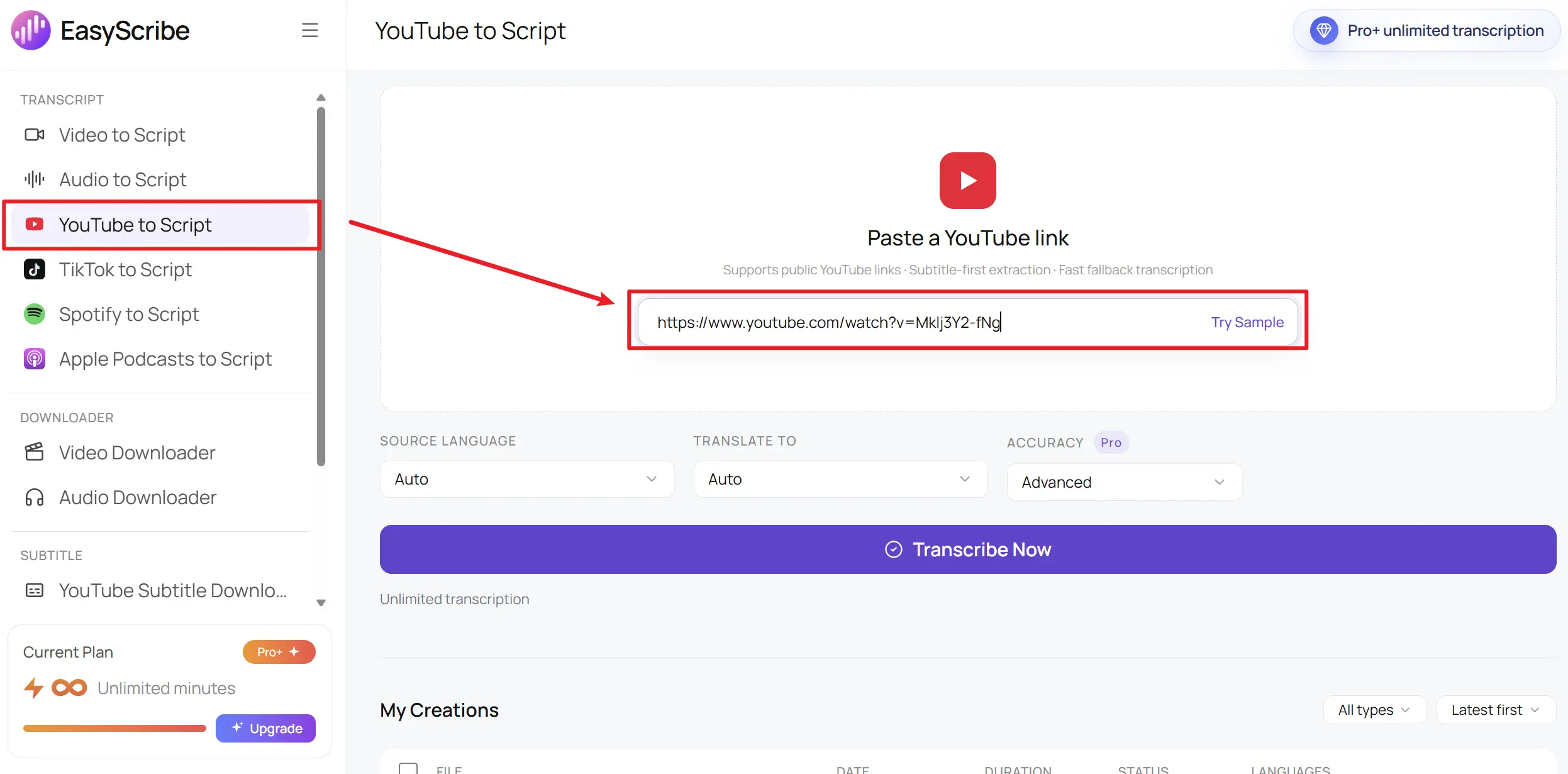
Step 3: Preview and Use the Transcript
Once the transcription is finished, you will see the full transcript editor.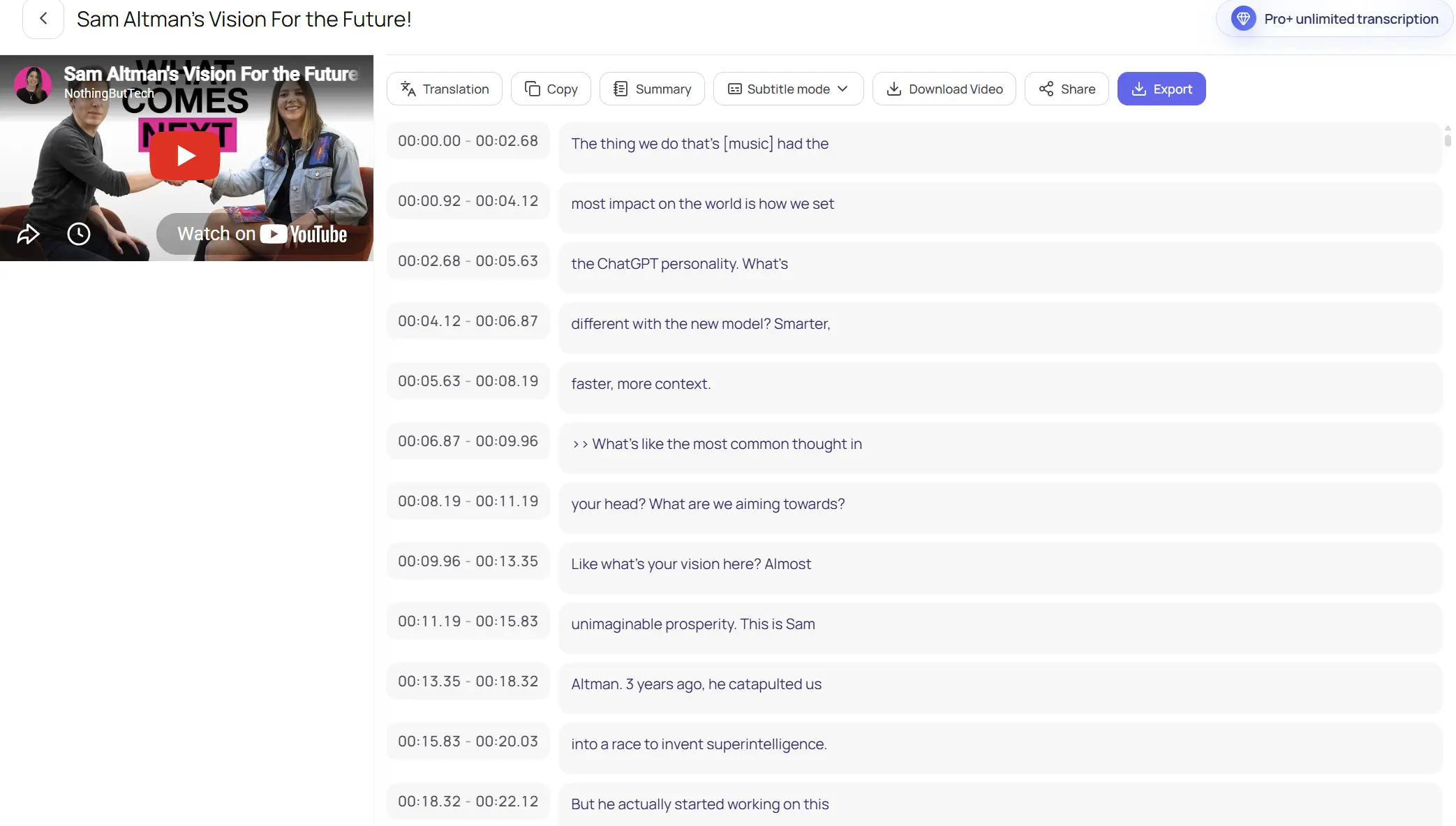
From here, you can edit the transcript, translate it, summarize the content, or export the text directly. If you also want to save the video, click Download Video to download it for local playback.
Quick note before you try it: EasyScribe is still improving, so the workspace may not always look exactly the same as the screenshots in this guide. If the interface or features change, we'll update this article so the steps stay useful.
FAQs about YouTube Transcript
Does YouTube auto-generate transcripts for every video?
Not every video. YouTube can auto-generate captions for many videos, but it is not guaranteed. If the audio is clear, the language is supported, and captions are not disabled, you will usually have a better chance of seeing a transcript. But if the video has heavy background noise, unclear speech, unsupported languages, or no caption data yet, the transcript may not show up. For new uploads, captions can also take some time to appear.
Can I download a transcript directly from YouTube?
Not really. YouTube usually lets you view and copy a transcript when captions are available, but it does not give you a clean one-click Download transcript button. So if you only need a few lines, copying from YouTube works. If you need a cleaner file, export options, or subtitle formats, you will probably need a transcript tool.
Why can't I find the "Show transcript" button on a YouTube video?
Usually, it comes down to one of a few reasons. The video may not have captions, the creator may have disabled them, or YouTube has not generated auto-captions yet. This is common with newly uploaded videos.
The first thing I would try is opening the same video on a desktop browser. If the Show transcript button still does not appear, the video probably does not have transcript data available, and you will need a tool that can transcribe the audio directly.
Can I get a YouTube transcript on iPhone?
Sometimes, yes. You may be able to open the transcript in the YouTube app or in a mobile browser, depending on the video and the interface you see.
But copying the transcript on mobile is usually not very convenient. If you want to copy, save, or clean up the transcript, using YouTube on desktop is usually easier.
Is there a free YouTube transcript generator?
Yes. If the video already has captions, YouTube’s own transcript panel is the free place to start.
If you need something more useful than just viewing the text, you can try EasyScribe. It lets you generate YouTube transcripts with a free daily quota, including 3 free transcriptions per day for videos or files up to 10 minutes each.
Can ChatGPT transcribe a YouTube video for me?
Not just from a YouTube link. In a normal chat, ChatGPT usually cannot open the video, listen to the audio, and create a full transcript by itself.
What you can do is get the transcript first using YouTube, Gemini, EasyScribe, or another transcript tool. Then you can paste the transcript into ChatGPT to summarize it, clean it up, turn it into notes, or ask questions about the video.
Is it legal to transcribe YouTube videos?
If it is your own video, or you have permission to use the content, you are usually fine.
For other people‘s videos, it depends on how you use the transcript. Reading it for personal notes, study, or research is very different from republishing the full transcript or using it commercially. If you plan to publish or reuse someone else’s content, check the rights, YouTube’s rules, and your local copyright laws first.
Final Thoughts
Getting a YouTube transcript is easy when the video already has captions. You can start with YouTube's own transcript panel, copy the text, or try Gemini if you just want to read the video quickly.
But if you need a cleaner transcript, better formatting, translation, subtitles, summaries, or export options, a basic copy-and-paste method will not be enough. That is where a tool like EasyScribe makes the process easier. Paste the YouTube link, generate the transcript, then edit, translate, summarize, or export it in one place.