
Deep guide
How to get better results with this workflow
Wrong speaker labels can change the meaning of a transcript. If a decision, promise, or question is assigned to the wrong person, the record becomes less useful.
The reliable workflow is to identify names early, review the transcript from beginning to end, rename labels consistently, merge duplicates carefully, and verify edited sections against the audio.
Speaker Identification Updated in the Transcript Workspace
Speaker detection is a starting point, not a guarantee. Uploaded multi-speaker audio may receive automatic diarization, while imported platform captions often contain no speaker information at all.
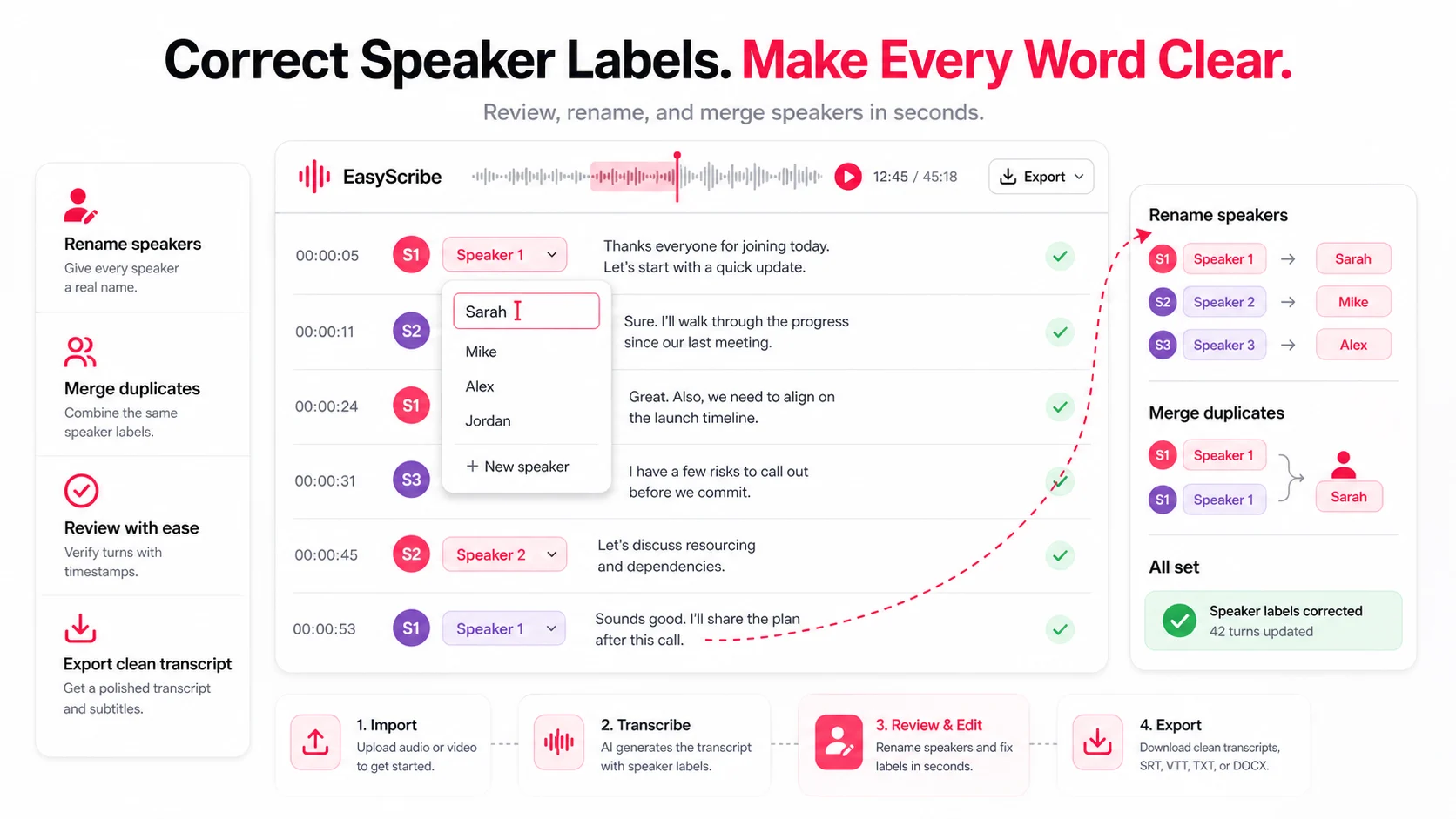
EasyScribe lets users create and rename speakers so the final transcript can be corrected regardless of the source.
Prepare the Transcript Before You Start Editing
Use clear source audio and the right diarization settings
Use the cleanest available recording. Reduce background noise and echo, keep voices at similar levels, and avoid unnecessary recompression.
Request speaker detection when the plan and source support it. If the number of speakers is known, keep that information in mind while reviewing unexpected extra labels.
Identify known speakers early in the first draft
The opening minutes often include introductions, host cues, names, roles, or direct questions. Map generic labels to real names as soon as you have enough evidence.
Use one naming format throughout: full names, first names, or consistent roles such as Interviewer and Participant.
Review the Transcript from Start to Finish to Find Label Errors
Use a three-pass review workflow
- Identity pass: confirm which labels belong to which people.
- Turn pass: check rapid exchanges, interruptions, and short responses.
- Meaning pass: verify decisions, promises, questions, and quotes.
This is faster than trying to perfect every sentence on the first pass.
Spot patterns that reveal misattribution
Watch for:
- One person's label suddenly appearing inside another person's story
- A label used for only one or two short segments
- Two labels with the same voice and role
- A long segment that contains two different speakers
- A question and answer assigned to the same person
- Speaker changes around overlap or background voices
Rename Speakers and Merge Split Labels
Rename speaker labels clearly and consistently
Select a speaker in the EasyScribe speaker panel and replace the generic label with the correct name or role. The change should update all segments that belong to that label.
For one isolated error, edit only the affected segment rather than renaming the entire speaker.
Merge duplicate labels for the same person
If one person appears under two labels, first confirm the voice across several timestamps. Then rename both labels consistently or reassign the affected segments.
Do not merge based on one short “yes” or “okay.” Similar short responses are not enough evidence.
Check Every Speaker Before You Export
Run a final accuracy check on edited sections
Review every segment that contains a decision, deadline, task owner, figure, or publishable quote. Confirm the speaker and the wording against the source media.
Export a transcript with speaker names preserved
After review, export the transcript or subtitles. Keep a consistent naming style so readers can scan the conversation without learning a new label system halfway through.
FAQs
How do I know when a speaker label is wrong?
Listen around introductions, direct questions, changes in voice, and places where one label suddenly appears inside another person's turn.
When should I use bulk rename instead of manual edits?
Use bulk rename only after confirming that the label consistently represents the same person. Correct isolated misattributions at segment level.
What should I do if I cannot identify a speaker?
Use a neutral placeholder such as Unknown 1 or Participant 3. Do not guess, especially when decisions or quotes depend on attribution.