
AI transcription guide · 13 min read
10 Ways to Use AI Transcription to Save Time at Work
AI transcription converts meetings, calls, and videos into searchable text, summaries, and action items to reclaim hours each week.
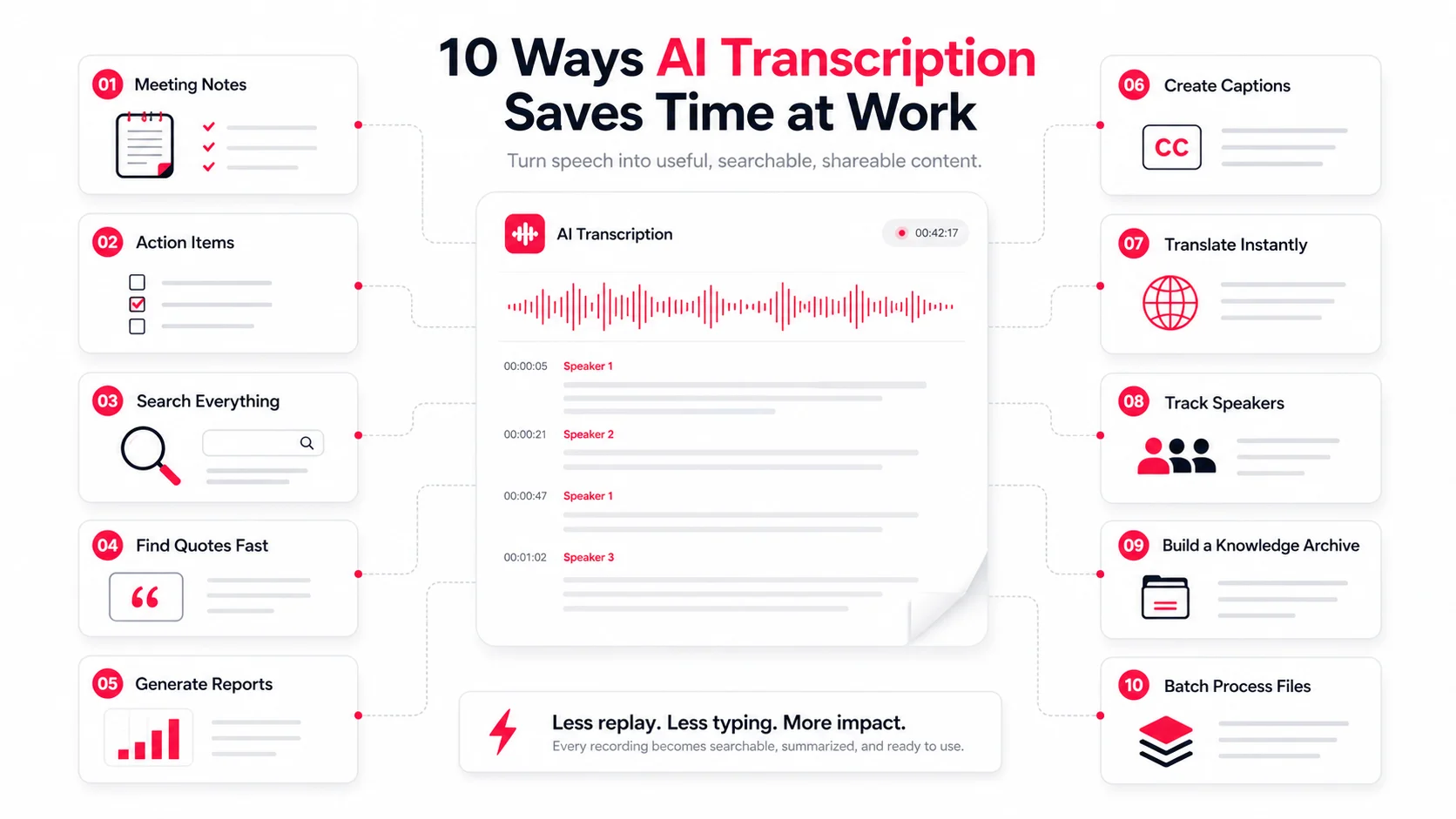
AI transcription can replace hours of note-taking, rewinding, and rewriting with a workflow that takes minutes. Meetings, interviews, calls, webinars, lectures, and training videos become searchable text that can be summarized and reused.
Here is the short version:
- Turn long meetings into searchable notes
- Pull out action items, owners, and deadlines
- Review calls without replaying every minute
- Convert spoken content into reports and documentation
- Create captions and multilingual transcript drafts
- Keep speaker context in multi-person conversations
- Process backlogs with batch transcription
Quick Comparison
| Use case | Manual work | With AI transcription |
|---|---|---|
| Meeting notes | Type, clean up, write recap | Transcript, summary, follow-up draft |
| Action items | Replay and assign tasks | Extract tasks, dates, and owners |
| Long calls | Rewatch and rewrite | Search and summarize |
| Interviews | Rewind and take notes | Timestamped, searchable text |
| Video captions | Manually sync lines | Start from generated subtitle timing |
| Global content | Create each language separately | Translate from a reviewed source transcript |
How AI Transcription Helps You Get More Done at Work
The largest time saving comes after transcription. Once speech becomes structured text, you can search, summarize, quote, translate, and export it without replaying the source for every new task.
The transcript should stay connected to the media. Search gets you to the right passage; timestamps let you verify the wording.
1. Use EasyScribe for Automatic Meeting Notes
Record the meeting, upload the file, and start with a timestamped transcript rather than handwritten notes. Review decisions, names, dates, and numbers, then create a concise recap.
Meeting transcription is especially useful for recurring standups, project reviews, customer calls, and training sessions.
2. Turn Meeting Transcripts Into Action Items and Follow-Ups
Ask the transcript workspace to identify tasks, owners, deadlines, decisions, and unresolved questions. The result becomes a starting point for a follow-up email or project update.
Always check that an owner or deadline was actually stated. AI should organize the conversation, not invent missing commitments.
3. Summarize Long Calls and Discussions in Minutes
A summary gives you orientation before you read the transcript. Use it to find the sections that deserve attention, then jump to the timestamps for verification.
This is useful for sales calls, research sessions, interviews, and internal discussions where only a few decisions matter.
4. Build Searchable Records From Interviews and Research
Interview recordings are difficult to compare as media files. Transcripts let researchers search repeated themes, customer language, objections, quotes, and product requests.
Speaker labels and timestamps preserve enough context to return to the original moment.
5. Turn Transcripts Into Emails, Reports, and Documentation
Use the transcript as source material for:
- Meeting recaps
- Status reports
- Customer research summaries
- Knowledge-base drafts
- Training documentation
- Follow-up emails
The transcript is evidence; the final document is a rewritten output shaped for its audience.
6. Add Captions and Subtitles to Videos and Webinars
Generated transcript timing can become an SRT or VTT subtitle draft. Review punctuation, line breaks, speaker changes, and proper names before publishing.
Caption workflows are faster because the timing starts automatically, even though the final public text still deserves a human pass.
7. Create Multilingual Transcripts and Translations for Global Teams
Translate a reviewed source transcript rather than translating directly from uncertain speech. This keeps names and terminology consistent and makes it easier to compare the source and target text.
8. Use Speaker Identification to See Who Said What
Speaker diarization separates turns in uploaded audio when the transcription provider supports it. Rename generic labels early, then correct split or merged speakers before export.
Platform captions often do not contain speaker identity, so those labels may need to be created manually.
9. Review Recorded Calls, Lectures, and Trainings Faster
Search the transcript for a topic, quote, or term instead of scrubbing through the full recording. Use playback only to confirm the passage you plan to reuse.
This turns a long replay task into a focused review task.
10. Handle Large Workloads With Batch Transcription and Shared Workspaces
When a backlog contains many files, create all tasks first, let processing continue in the background, and review completed work in priority order.
The task list should make upload state, queue state, failures, and source type visible so users know what requires attention.
Manual vs. AI Transcription: A Side-by-Side Workflow Comparison
| Stage | Manual transcription | AI-first transcription |
|---|---|---|
| Create draft | Replay and type the whole file | Generate a complete first pass |
| Find key points | Reread notes or replay | Search and summarize |
| Identify speakers | Type names manually | Start from diarization, then correct |
| Create captions | Add timing by hand | Export timed subtitle drafts |
| Scale workload | Add more reviewers | Queue multiple recordings |
| Quality control | Review everything | Review high-impact passages |
Conclusion
AI transcription saves time because it removes repeated replay and manual rewriting. The best workflow still includes a person: use AI to create and organize the draft, then review the parts that affect decisions, quotes, names, or publication.
FAQs
How accurate is AI transcription?
Accuracy depends on microphone quality, background noise, accents, overlapping speech, and specialist vocabulary. Always review names, figures, and high-impact statements.
What file types can I upload?
EasyScribe supports common audio and video formats such as MP3, WAV, M4A, MP4, MOV, and WebM, plus supported public media links.
How can I get better transcript quality?
Use a close microphone, reduce echo and background noise, ask people not to talk over each other, select the correct language, and review important terms after transcription.